USB Cable Types Explained: A to C, 2.0 to 4.0 | What Every User Should Know
Posted by sf cable
Filed in Technology 233 views
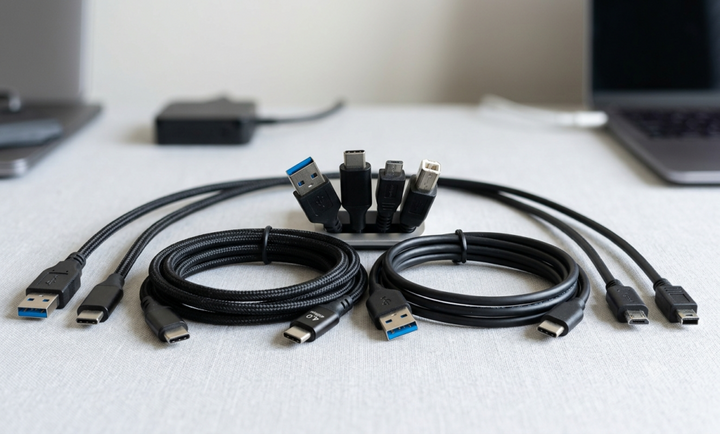
If you’ve ever rummaged through a drawer full of cables trying to figure out which one fits your device, you’re not alone. USB cables come in a surprising number of shapes, sizes, and versions and choosing the wrong one can mean slow charging, failed data transfers, or a connector that simply doesn’t fit. This guide breaks down everything you need to know about USB cable types, from the familiar Type-A to the increasingly dominant Type-C, and from the aging USB 2.0 standard all the way to the blazing speeds of USB 4.0.
Understanding USB: Connectors vs. Versions
Before diving in, it’s important to understand that USB has two distinct characteristics that often get confused: the connector type (the physical shape of the plug) and the USB version (the underlying technology that determines speed and power). A cable can have a Type-A connector on one end and a Type-C on the other, while supporting USB 2.0 or USB 3.1 speeds the version is determined by the internal wiring, not just the connector shape.
USB Connector Types: The Physical Shapes
USB-A (Type-A)
USB-A is the rectangular connector that has been the standard on computers and chargers for over two decades. You’ll find it on laptop ports, wall adapters, car chargers, and virtually every hub sold before 2020. It is not reversible there is a definite “right way up” which has been a minor annoyance for users since its introduction.
USB-B (Type-B)
USB-B is the square-ish, boxy connector commonly found on printers, scanners, and older external hard drives. It was designed primarily for peripheral devices that sit on a desk and connect to a computer. While less common in consumer electronics today, USB-B cables are still widely used in professional and office environments, particularly with laser printers and audio interfaces.
Mini USB
Mini USB was the go-to connector for compact devices in the early-to-mid 2000s think digital cameras, older GPS units, and early MP3 players. It comes in a 5-pin and a less common 4-pin variant. While largely phased out in favor of Micro USB and now USB-C, you may still encounter Mini USB on older equipment that you need to charge or sync.
Micro USB
Micro USB became the universal standard for Android smartphones and small electronics throughout the 2010s. It is thinner than Mini USB and comes in two main forms: Micro-A and Micro-B, with Micro-B being by far the more common. Micro USB also supports USB OTG (On-The-Go), which allows a smartphone or tablet to act as a host device enabling you to connect a flash drive or keyboard directly to your phone.
USB-C (Type-C)
USB-C is the current and future standard for USB connectivity. Its defining feature is a small, oval, fully reversible connector you can plug it in either way without looking. USB-C is now found on virtually all modern smartphones (including iPhones as of the iPhone 15), laptops, tablets, and even some monitors and accessories. It supports much higher power delivery (up to 240W in some configurations), faster data speeds, and can even carry video signals.
USB Versions: The Speed and Power Behind the Plug
USB 2.0
Released in 2000, USB 2.0 introduced what was then called “High Speed” at a maximum transfer rate of 480 Mbps. For context, that’s roughly 60 MB per second under ideal conditions. USB 2.0 is still perfectly adequate for keyboards, mice, printers, webcams, and basic charging. The vast majority of USB cables sold today are USB 2.0, making it the baseline standard that everything else is measured against.
USB 3.0 / 3.1 / 3.2
USB 3.0 (now officially called USB 3.2 Gen 1) increased speeds to 5 Gbps over ten times faster than USB 2.0. You can typically identify a USB 3.0 port or connector by the blue color coding inside the port or plug. USB 3.1 Gen 2 doubled this to 10 Gbps, and USB 3.2 Gen 2×2 pushed it further to 20 Gbps using two lanes simultaneously.
USB 4.0
USB 4.0 is the latest generation and is based on the Thunderbolt 3 protocol. It delivers transfer speeds of up to 40 Gbps and supports simultaneous data transfer and video output over a single cable. USB 4.0 is exclusively available on USB-C connectors. It’s particularly beneficial for power users who work with 4K or 8K video editing, large database transfers, or high-end docking stations.
How to Choose the Right USB Cable
With so many options available, selecting the right USB cable comes down to answering a few straightforward questions:
• What connectors does my device use? Check both ends of the connection your device and the power source or computer.
• Do I need it for charging, data transfer, or both? A basic charging cable only needs power conductors; for fast data transfer, invest in a cable that supports the USB 3.x or USB 4 version your devices use.
• What speed do I actually need? For keyboards and mice, USB 2.0 is more than enough. For external storage drives, aim for USB 3.0 or higher.
• What length do I need? Longer cables can experience signal degradation, especially at higher USB versions. For USB 3.0 and above, keep cables under 3 meters (about 10 feet) for reliable performance, or use an active extension cable for longer runs.
While USB cables are essential for charging and data transfer, many home entertainment systems also rely on an optical cable for high-quality digital audio connections. Also known as a digital optical cable or optical cord, this type of cable uses light signals instead of electrical signals to transmit audio, helping reduce electromagnetic interference and deliver clear sound between TVs, soundbars, AV receivers, gaming consoles, and other compatible devices. Unlike USB cables, optical cables are designed exclusively for audio transmission and cannot carry power or data. Understanding the purpose of each cable type ensures you choose the right connection for both your computing devices and your home entertainment setup.
Quick Reference: USB Cable Types at a Glance
• USB-A: Rectangular, non-reversible. Found on computers, chargers, hubs. The host-side connector for most setups.
• USB-B: Square, boxy. Used for printers, scanners, and some audio equipment.
• Mini USB: Older small-device connector. Cameras, older GPS units. Largely obsolete.
• Micro USB: Thin, widely used on Android phones and accessories throughout the 2010s. Supports OTG.
• USB-C: Oval, reversible. The modern universal standard. Supports fast charging, high-speed data, and video.
• USB 2.0: 480 Mbps. Sufficient for peripherals and basic charging.
• USB 3.x: 5–20 Gbps. Ideal for external storage and fast file transfers. Often blue-coded.
• USB 4.0: Up to 40 Gbps. USB-C only. Best for demanding professional and multimedia workloads.
Final Thoughts
USB cables may seem like a minor detail, but choosing the right one makes a real difference in your day-to-day experience. The wrong cable won’t damage most devices, but it can mean waiting twice as long for a file transfer or discovering that your phone is charging at a fraction of the speed it could be. Now that you understand the difference between connector types and USB versions, you’re equipped to pick the right cable for any device in your home or office no more drawer rummaging required.
Original Article :- https://servicesdictionary.com/services/usb-cable-types-explained-a-to-c-2-0-to-4-0-what-every-user-should-know/