Troubleshooting Common PST File Corruption Issues
Posted by deni denial
341 views
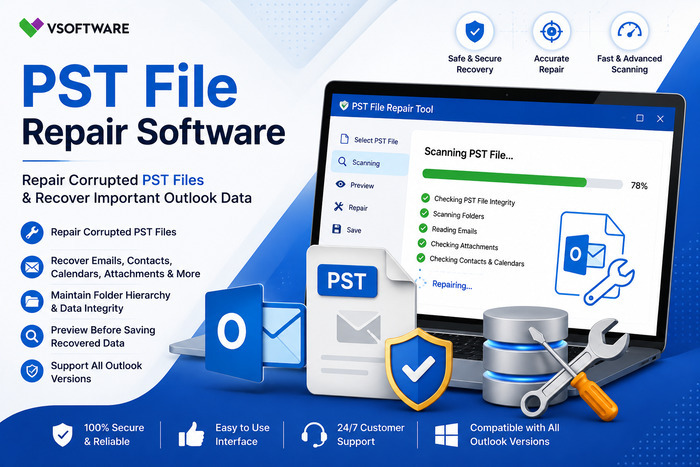
PST files are a central part of managing your emails and data within Microsoft Outlook. They store everything from messages to contacts, calendars, and even notes, making them essential for both personal and professional use. However, like any digital file, PST files can become corrupted due to various reasons. When this happens, it can lead to frustrating scenarios where you can't access important information.
Imagine starting your day with a coffee in hand only to find that you can't retrieve crucial emails or calendar appointments because of a corrupted PST file. It’s enough to make anyone cringe! But don’t worry; troubleshooting these issues doesn’t have to be daunting. Whether you're experiencing strange behaviors or outright access problems with your PST files, understanding the root causes and solutions can help restore order quickly.
Dive into this guide as we uncover the common causes behind PST file corruption and provide effective strategies for repair—ensuring that you keep your productivity flowing smoothly without losing valuable time!
Understanding PST Files
PST, or Personal Storage Table, is a file format used by Microsoft Outlook to store emails, contacts, calendar events, and other data. This versatile file allows users to manage their information efficiently within the application.
When you create an email account in Outlook, a PST file typically gets generated automatically. It acts as a local repository for all your valuable communications and planning tools. As you send and receive messages or schedule appointments, your PST grows with this wealth of information.
Understanding how PST files work is crucial for effective management. They can be stored locally on your hard drive or at a network location, making them accessible at any time when using Outlook. However, this convenience also makes them susceptible to various issues that may lead to corruption if not handled properly. Knowing the ins and outs of these files can prepare you for potential problems down the line.
Common Causes of PST File Corruption
PST file corruption can happen for various reasons. One major cause is unexpected shutdowns. When your computer crashes or experiences a power outage, it interrupts the writing process to the PST file.
Another culprit is large file sizes. Microsoft Outlook has size limits for PST files. Exceeding these limits often leads to corruption, making data inaccessible.
Virus infections also pose a significant risk. Malicious software can damage your files and compromise their integrity.
Additionally, improper handling during upgrades or migrations may introduce errors in your PST files. Users should always follow best practices when managing data transitions.
Using outdated versions of Outlook might lead to compatibility issues that result in corrupted files, so keeping your software updated is essential for smooth operation.
Symptoms of a Corrupted PST File
Recognizing the symptoms of a corrupted PST file is crucial for timely intervention. Users often experience frequent crashes or freezes when launching Microsoft Outlook, which can quickly become frustrating.
Another sign to watch for is error messages that pop up unexpectedly. These alerts may indicate issues with accessing emails or other data stored within the PST file.
You might also notice missing items in your inbox or calendar. Emails could seem to vanish without explanation, adding to the confusion and stress of managing important information.
Additionally, slow performance can hint at underlying problems. If navigating through folders feels sluggish or unresponsive, it’s worth investigating further.
If you encounter difficulties while sending or receiving emails, your PST file may be compromised. Addressing these symptoms early on can save time and prevent more severe complications down the line.
How to Repair a Corrupted PST File
Repairing a corrupted PST file can seem daunting, but several effective methods exist. Start by using the built-in Inbox Repair Tool (Scanpst.exe) provided by Microsoft. This tool scans your PST file for errors and attempts to fix them automatically.
To use it, locate Scanpst.exe on your computer and run the application. Select the corrupt PST file you want to repair and initiate the scanning process. If issues are found, follow the prompts to repair them.
If Scanpst doesn’t resolve your problem, consider specialized software designed specifically for PST file recovery. These tools often come equipped with advanced features that can recover lost data more effectively than standard options.
Always remember to back up your files before attempting any repairs. This precaution ensures you don’t lose important information during the troubleshooting process.
Prevention Tips for PST File Corruption
To safeguard your PST files, start by regularly backing them up. Use external drives or cloud storage for added security. This way, you can easily recover data in case of corruption.
Monitor the size of your PST files. Keeping them under 2GB helps prevent issues since larger files are more prone to damage. Consider splitting large files into smaller ones if necessary.
Always close Outlook properly before shutting down your computer. Abrupt closures can lead to file corruption over time.
Be cautious with third-party add-ins and tools that interact with Outlook. Some may cause conflicts leading to file integrity issues.
Run regular maintenance on your system, including disk checks and defragmentation. A healthy drive environment supports the stability of all stored data, including PST files.
Alternative Solutions for Managing Outlook Data
Managing Outlook data doesn’t have to revolve solely around PST files. Several alternative solutions can simplify your experience.
Cloud storage services like OneDrive or Google Drive allow for seamless file sharing and access from anywhere. Synchronizing your emails, contacts, and calendars with these services ensures you never lose important information.
Using online email platforms such as Gmail can also alleviate some pressure from local PST files. They offer robust security features and built-in organization tools to keep everything tidy.
Consider third-party applications designed specifically for managing Outlook data. These tools often provide enhanced functionality, including better backup options and easier migration capabilities.
Having multiple ways to manage your Outlook data not only enhances accessibility but also reduces the risk of corruption associated with large PST files. Embracing a more diverse approach can lead to a smoother user experience.
Conclusion
Dealing with PST file corruption can be frustrating, but understanding the issues and having a toolbox of solutions at your disposal makes it manageable. Regular maintenance is key to preventing data loss. Utilize the built-in repair tools that come with Outlook, like the ScanPST tool, for minor fixes.
For more severe cases or when you need faster results, investing in a reliable PST file repair tool may save time and headaches. Keeping backups of important emails and files ensures peace of mind. By implementing good practices for managing your Outlook data, you can minimize the risk of corruption.
Stay informed about common causes and symptoms associated with PST file issues. This knowledge equips you to take proactive steps in safeguarding your digital correspondence. With persistence and proper tools at hand, dealing with corrupted PST files becomes far less daunting.