PST Splitter Tool: A Practical Solution for Oversized PST Files
Posted by Ved Prakash
168 views
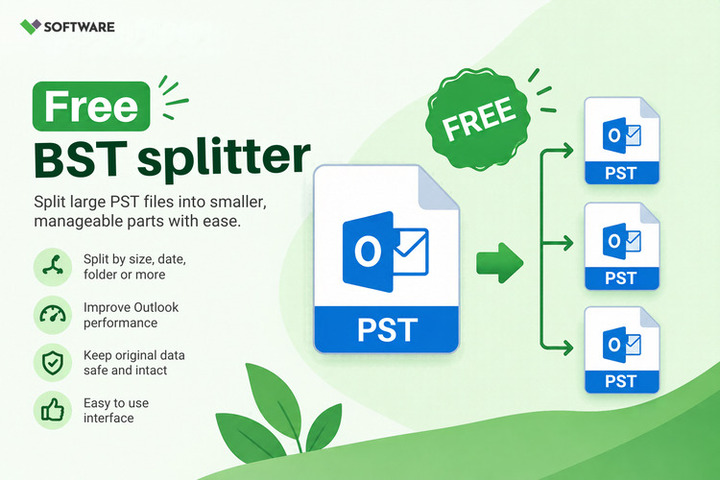
Microsoft Outlook is a widely used email client for managing emails, contacts, calendars, tasks, attachments, and other mailbox information. Outlook users often store their mailbox data in PST (Personal Storage Table) files. As emails and attachments accumulate over months or years, these files can grow considerably in size.
Managing an oversized PST file can become inconvenient, particularly when users need to archive, transfer, organize, or back up their Outlook data. Instead of maintaining all mailbox information in one large file, users can divide it into multiple smaller PST files. A PST Splitter Tool provides a structured approach to accomplishing this task while preserving important mailbox information.
This article explains why PST files become oversized, the challenges associated with large PST files, and how PST Splitter Software can help users Split PST File data into smaller and more manageable parts.
What Is an Outlook PST File?
A PST file is an Outlook data file used to store mailbox information on a computer. Depending on the Outlook configuration, a PST file may contain emails, attachments, contacts, calendar entries, notes, tasks, and other items.
PST files are useful for maintaining local mailbox data and creating archives. However, their size increases as new information is added.
For example, a mailbox containing thousands of messages with PDF files, images, spreadsheets, presentations, and other attachments can consume several gigabytes of storage. Over time, managing such a large PST file may become less convenient.
This is where splitting an oversized PST file can be useful.
Why Do PST Files Become Oversized?
Several factors contribute to PST file growth. One of the most common reasons is long-term email accumulation. Users who have worked with the same Outlook profile for years may have thousands of old emails stored locally.
Large attachments are another major contributor. Even if individual attachments are relatively small, years of accumulated documents and media can substantially increase the overall size of the PST file.
Other factors include:
-
Large numbers of sent and received emails
-
Archived messages stored for several years
-
Email attachments and embedded media
-
Calendar entries and meeting information
-
Contacts and other Outlook items
-
Multiple mailbox folders and subfolders
-
Limited mailbox cleanup or archiving
Rather than maintaining all this information inside one large file, users may choose to Split PST File data according to specific requirements.
What Is a PST Splitter Tool?
A PST Splitter Tool is an application designed to divide a large Outlook PST file into multiple smaller PST files.
Unlike manually transferring messages between Outlook data files, dedicated splitting software can provide predefined criteria for organizing mailbox information. Depending on the application, users may be able to split PST files according to size, year, date, or folder.
The objective is to create smaller and more manageable files while retaining important mailbox properties and organization.
For users dealing with large archives or multiple oversized Outlook data files, this approach can reduce the amount of repetitive manual work involved in PST management.
Why Split an Oversized PST File?
Splitting a large PST file can provide several practical benefits.
Easier File Management
Managing multiple well-organized PST files can be simpler than maintaining one very large mailbox archive. Users can create separate files based on years, projects, departments, or other categories.
Simplified Backup
Large PST files can require more time and storage resources during backup. Smaller files allow users to organize backups into separate units and copy only the files that are required.
Convenient Data Transfer
Moving an extremely large PST file between computers or storage devices can be inconvenient. Smaller PST files may be easier to transfer individually.
Better Email Archiving
Historical messages do not always need to remain in the same active PST file. Users can separate older information and maintain dedicated archive files for future reference.
Organized Outlook Data
Splitting PST files according to logical criteria can make archived information easier to locate. For example, separate PST files can be created for different years or mailbox folders.
Different Ways to Split PST Files
The available splitting options depend on the selected PST Splitter Software. Common approaches include the following.
1. Split PST by Size
This option divides a large PST into smaller files according to a specified size limit.
For example, users may want a large PST divided into several smaller files instead of keeping the entire mailbox inside a single file.
This method can be particularly useful when file size is the primary concern.
2. Split PST by Year
Users with many years of mailbox information may prefer year-based organization.
A large archive containing emails from several years could be separated into individual PST files for each year, making historical information easier to categorize.
3. Split PST by Date
Some tools allow users to separate Outlook information according to specific date ranges.
This approach is useful when users need greater control over which periods are included in individual output files.
4. Split PST by Folder
Folder-based splitting can help users separate specific mailbox folders into different PST files.
For example, users may want different PST files for selected mailbox folders or categories rather than dividing information purely according to file size.
How Does PST Splitter Software Work?
Although the exact procedure differs between applications, most PST Splitter Software follows a straightforward workflow.
First, the user selects the source PST file. The software scans or processes its mailbox structure and provides the available splitting options.
The user then selects the preferred criterion, such as size, date, year, or folder. After choosing an output location, the splitting operation can begin.
The resulting PST files can then be reviewed to confirm that the required mailbox information has been processed correctly.
Before using any application with important business data, users should review its documentation and test the process on a backup copy of the PST.
Important Features to Look for in a PST Splitter Tool
Not every PST management application provides the same capabilities. Users should evaluate the available features before selecting a solution.
A practical PST Splitter Tool may provide features such as:
-
Support for large PST files
-
Multiple splitting criteria
-
Preservation of email attachments
-
Retention of folder and subfolder hierarchy
-
Preservation of email metadata
-
Support for relevant PST formats
-
Simple source and destination selection
-
Flexible output management
-
Compatibility with required Windows or Outlook environments
Users should verify these capabilities from the software provider rather than assuming every tool offers the same functionality.
Manual Method vs PST Splitter Software
Outlook users can also create additional PST files manually and move selected messages or folders into them. This method may be sufficient when only a small amount of mailbox data needs to be reorganized.
However, manually moving thousands of emails can become time-consuming. It may also be difficult to divide mailbox information according to precise size or date requirements.
A dedicated PST Splitter Software solution can automate much of this process. It may therefore be more suitable for users dealing with large files, extensive folder structures, or repeated splitting requirements.
The right method depends on mailbox size, the required splitting criteria, and how much manual work the user is willing to do.
How to Protect Email Data While Splitting PST Files
Data protection should remain a priority whenever Outlook files are processed.
Before you Split PST File data, create a complete backup of the original PST file. Keep this backup in a separate location and avoid modifying it until the splitting process has been successfully completed and verified.
Users should also make sure sufficient storage space is available for the output PST files. Interrupting an operation because of insufficient disk space can create unnecessary complications.
After splitting, inspect the generated files. Verify important folders, messages, attachments, dates, sender and recipient information, and other required mailbox properties.
For business-critical information, testing the selected software with a duplicate PST file before processing the original data is a sensible precaution.
Best Practices for Managing Oversized PST Files
Splitting is only one part of effective Outlook data management. Users should periodically review their mailbox and remove unnecessary information where appropriate.
Older messages can be archived according to an organization's retention requirements. Large attachments can also be managed according to applicable storage and compliance policies.
When multiple PST files are created, use clear and descriptive file names. Names such as Outlook-Archive-2025.pst or Project-Emails-2026.pst make it easier to identify the contents later.
Maintaining a consistent backup strategy is equally important, especially when PST files contain business communications or historical records.
Conclusion
Oversized Outlook PST files can make email archiving, backup, transfer, and organization more difficult. Dividing a large PST into smaller files provides a practical way to maintain a more structured Outlook data environment.
Users can manually Split PST File data by creating additional Outlook data files, but this process can become time-consuming for large mailboxes. A dedicated PST Splitter Tool can simplify the task by providing automated splitting options based on criteria such as size, year, date, or folder.
Reliable PST Splitter Software should also focus on maintaining important mailbox information, including emails, attachments, metadata, and folder organization. By backing up the original file, selecting appropriate splitting criteria, and verifying the resulting files, users can manage oversized PST data more efficiently and systematically.